


Google Chrome is unquestionably the safest browser with a 100% secured privacy system that you can come across. Whether you purchase a new Smartphone or a PC, you will find Google Chrome in-built app as the primary browser by default. However, no matter how safe a browser is, some websites out there are going to bother you many times a day. For example, if you accidentally or out of curiosity visit a website that has illegal content on it, the next thing you know, you get persistent notifications on your device from the same website. Sometimes, things go too far that you will wonder how to block a website on Chrome?

Introduction
For the most part, scamming websites is not a single category of websites that users generally block. Indeed, websites that steal your personal information, such as email addresses, and consistently send spamming emails are also the ones to target using the blocking option on Chrome.
Apart from this, the internet world is open to anyone and everyone. If you have kids/teenagers in the house, you must ensure that they are not viewing inappropriate content on their phones or PC. In such cases, parental control and how to block a website on Chrome guide come in handy.

So, have you already shortlisted what websites you want to block on Chrome? If yes, then the following guide will assist you in reaching your goal and secure safety and parental control on the internet. Let’s get started:
Why block a website?
To begin with, when we talk about blocking a website, people, in general, do not consider websites as a threat. The first question that pop-up in their mind is, why block a website? What harm can it do? That’s right! Users who are unaware of how the internet works find it challenging to comprehend the harms of suspicious websites.
According to the latest reports, over 26% of internet users at the global level block websites that bother them with constant advertisements, pop-up windows, redirection, spamming emails, notification updates, and so on.

Not all websites that a user visits are harmful. But, websites that show signs of cyber fraud should come under consideration. Are you also wondering if you should block a website? Our research has concluded top signs of suspicious and harmful websites that one should block on Google Chrome.
Here are the signs you must look out for:
- Questionable domain name. For example, if you want to visit a website of a well-known brand such as https://www.amazon.in, you will find other links on the web such as https://www.amazon.net. Clearly, the former address is a genuine one, whereas the latter is fraudulent.
- Websites that claim 100% cashback, free schemes, credit card information without charges, and so on. Any website that tries to lure you into a scheme by offering any of the above-mentioned benefits has the potential of cyber fraud. Such websites also send emails in which there is a link. If you click on the link, it may steal your personal data without your knowledge.

- The website URL does not include the “HTTPS” protocol where S means secure. If the website is insecure, you will not see a “small lock icon” in the address bar on Google Chrome.
- A website that redirects too many times while streaming tv shows, movies, documentaries, and so on.
- Since you have visited a website, your PC/Mobile system is acting strange. For example, constant notifications, emails, ads from different web addresses.
- You receive “Firewall Warning” on Chrome every time you visit a website. 80% of the time, such websites are insecure.
Apart from the above signs provided, you may have many reasons to block a website on Chrome. So, are you ready to take special steps to ensure safety on the web? Let’s get started:
How to block a website on Chrome?
There are several methods you can use to block a website on Chrome. All the methods provided below fit into distinct types of websites that users generally like to block.
#Method One: How to block a website on Chrome permanently on MacBook?
Presuming that you have come across a dangerously suspicious website and it contains inappropriate and illegal content, your first instinct will be to learn how to block a website on Chrome permanently? The following instructions will assist you in doing so:
- First of all, access the “System preferences” on your MacBook.
- In Settings, navigate to the “Screen Time” section.
- Next, click on the “Content and Privacy restrictions” alternative.
- In this section, navigate to the “Web content” option.
- Then, choose the “Limit Adult Websites” alternative.
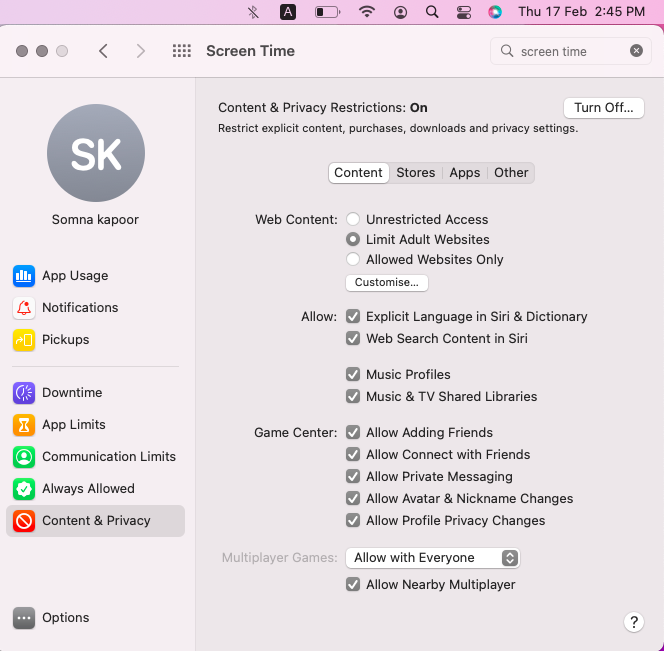
- Finally, click on the “Add a Website” option.
- Now, enter the URL of the website that you want to block.
- Once done, tap on the “Save Settings” option below.
You have successfully blocked a website on Chrome permanently.
Note: Once you have blocked a website on Chrome, you will no longer be able to access it in any way possible. To access a blocked website in the future, you can either delete the respective website’s URL from the blocked list by reversing the above-mentioned method. Or, you can use another browser to do so.
If any other user at home tries to visit a blocked website on Chrome, it will show an err_connection_timed_out error on the screen.
#Method two: How to block a website on Chrome using JavaScript?
How do you know if a website is harmful? One of the major signs of a malfunctioning website is that it uses JavaScript. The reason is, JavaScript coding language allows the program to quickly change codes and lure users into their web of scams. Thus, if you are wondering how to block all websites on Chrome that may be fraudulent, there is a simple and quick way.
Without a doubt, it can be challenging to block all the websites with JavaScript one by one because there can be millions of these out there. By using the following guide, you can block all potential fraud websites on Google Chrome:
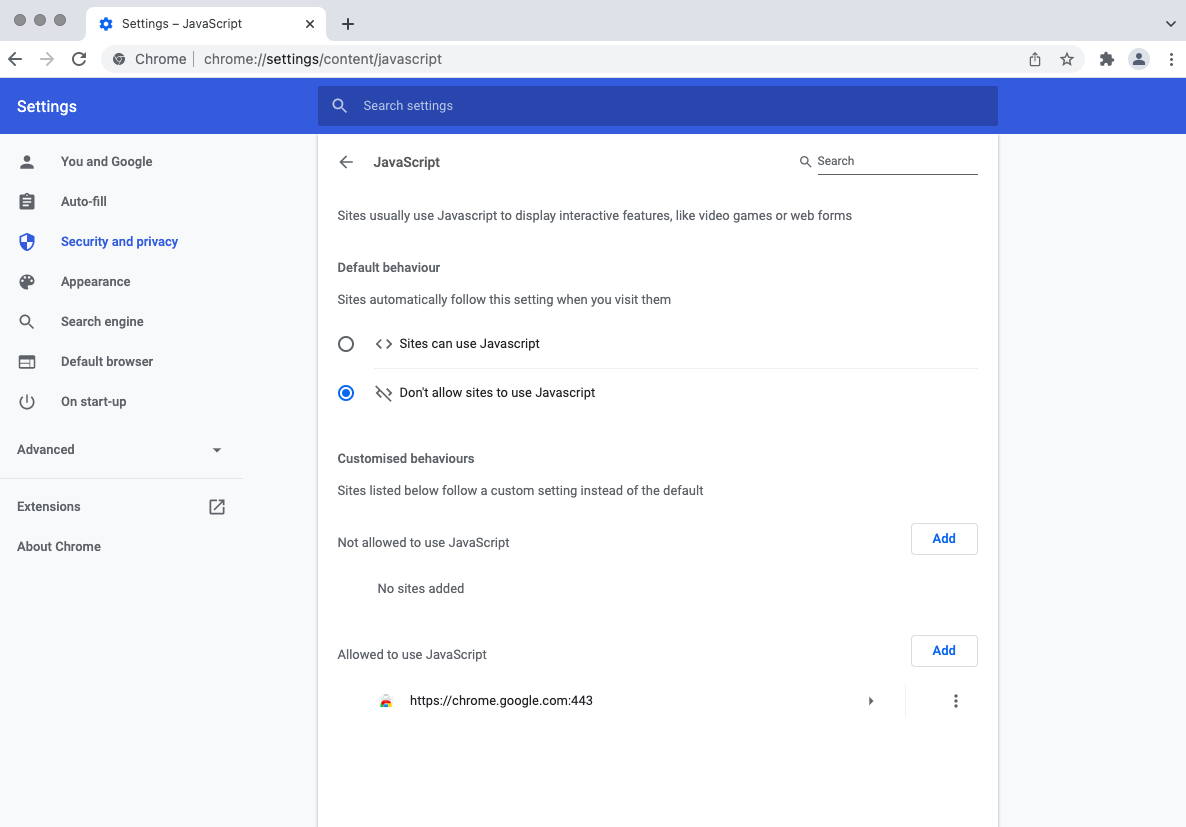
- First of all, access the Chrome browser on your PC or Mobile.
- On the top, you will see a three-dots icon. Click on the same.
- Navigate to the “Settings” option provided in the dropbox menu.
- In Settings, navigate to the “Security and Privacy” tab using the menu on the left side.
- Then, click on the “Site Settings” option on the last.
- Under the content section, click on the “javascript” alternative.
- Now, under the default behavior section, mark “Don’t allow sites that use JavaScript” by filling the circle ahead of it.
- Once done, go back.
Note: In the event that you have a specific JavaScript using a website in mind that you want to block, scroll down to the “Customized behavior” option, and in front of “not allowed to use JavaScript,” click on the Add button. Add the specific website’s URL. You are good to go!
#Method Three: How to get rid of inappropriate images on a website from viewing on Google Chrome?
As a parent, your mind may think of multiple scenarios when it comes to brainstorming. What are your kids searching for on the web? Because there are thousands of pornographic websites on the web, it is nearly impossible to block all of them. But, what if you can block all the inappropriate images content? That would be much easier on Google Chrome. Here is how to do it:
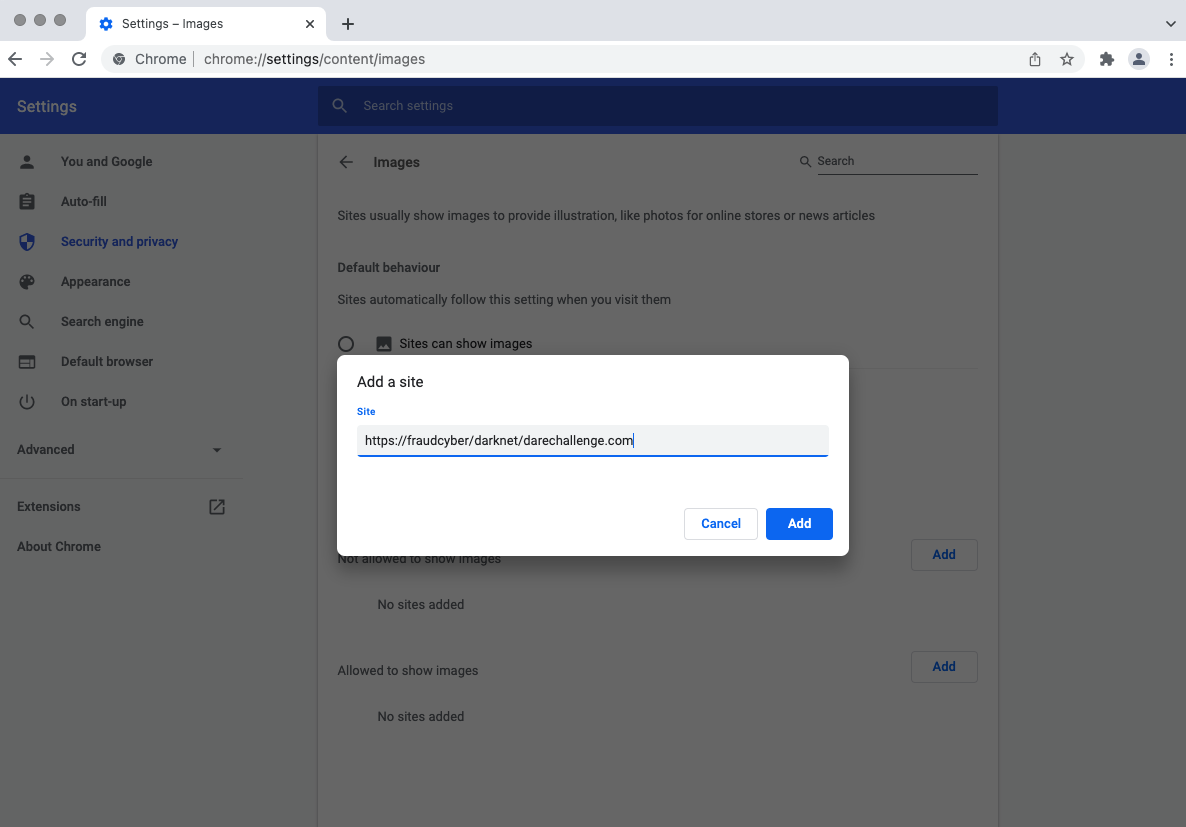
- First of all, access the Chrome browser on your PC or Mobile.
- On the top, you will see a three-dots icon. Click on the same.
- Navigate to the “Settings” option provided in the dropbox menu.
- In Settings, navigate to the “Security and Privacy” tab using the menu on the left side.
- Then, click on the “Site Settings” option on the last.
- Under the content section, click on the “Images” alternative.
- Now, under the default behavior section, mark “Don’t allow sites that use Images” by filling the circle ahead of it.
- Once done, go back.
As an out-turn, you will no longer be willing to view images on the web. This method is a bit sacrificing because what if you are shopping online? In this case, you can simply scroll down to the “Customized behavior” option, and in front of “not allowed to use images,” click on the Add button. Add the specific website’s URL. As a result, only images on the added website will be blocked.
#Method Four: How to block all possible insecure websites on Chrome?
Do you want all-rounding protection from dangerous websites on Chrome? Again, it can be challenging to shortlist all fraudulent and inappropriate websites with investing hours. Is there a way to block them all at once?
Luckily, the answer is yes. Google Chrome, as mentioned before, comes with a high-end security and privacy system for the user. Thanks to the following Logue, you will be able to block all websites that are not secured. Let’s take a look:
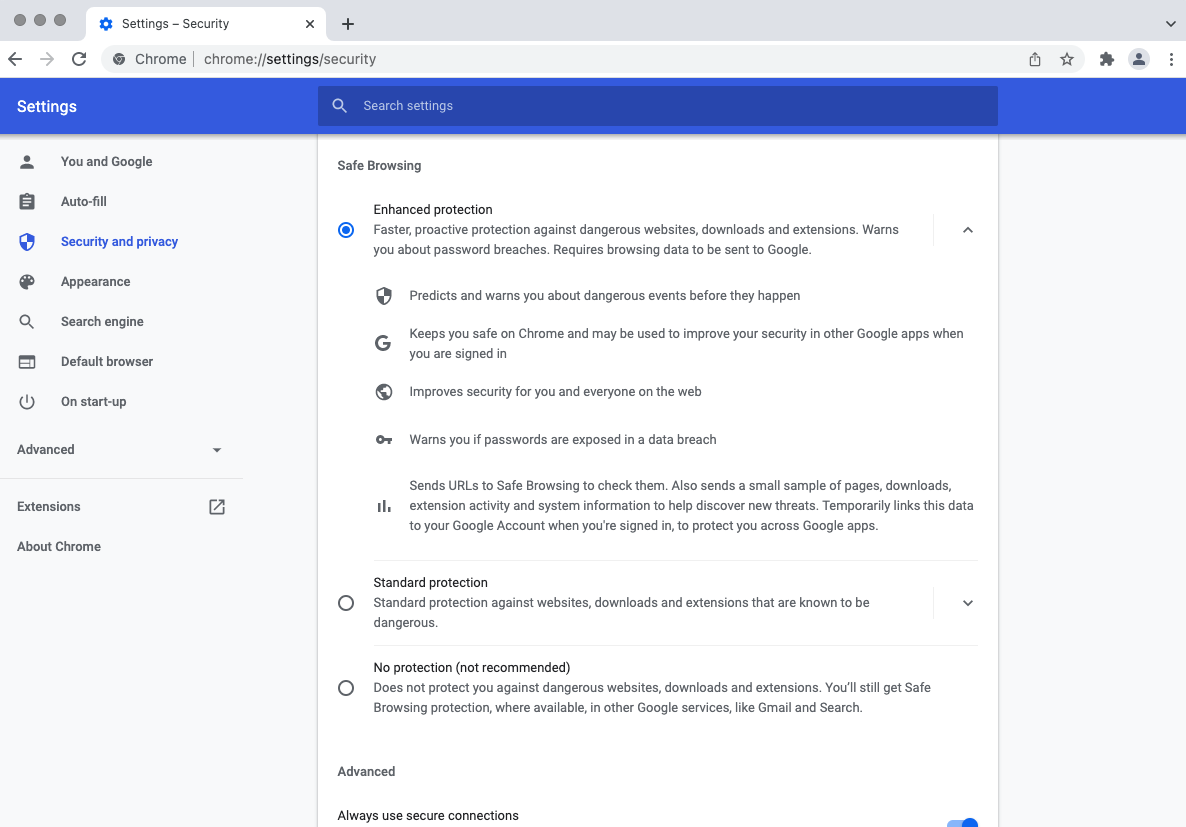
- First of all, access the Chrome browser on your PC or Mobile.
- On the top, you will see a three-dots icon. Click on the same.
- Navigate to the “Settings” option provided in the dropbox menu.
- In Settings, navigate to the “Security and Privacy” tab using the menu on the left side.
- Then, click on the “Security” option.
- Here, under the Safe Browsing section, switch to the “Enhanced Protection” lead.
- Next, under the Advanced section, use the toggle slide to turn on “Always use secure connections.”
- Save the settings and go back.

As a result, all websites you visit on Google Chrome will first go through a security check. In the event of a data breach, spamming activity, suspicious access to data, and other threats, Chrome will automatically block.
#Method Five: How to block a website on Chrome using an extension?
There is no doubt that Google Chrome in itself is a 100% secured browser for quick searches on the web. But nevertheless, cautiousness is never too much. So, you can easily add website blocking extensions on Chrome Web Store. The good part is these extensions are 100% free and easy to use.
- Access the https://chrome.google.com/webstore/category/extensions.
- In the search box, enter “Website Blocker” and press the enter button.
- Next, among the list of website blocker extensions, choose a blocker.
- On the right, click on “Add to Chrome.”
- Tap the “Add Extension” on the pop-up dialogue box.
- Now, to block a website, go to the website’s URL.
- In the top bar, choose the “extension icon,” which looks like a piece of a puzzle.
- Select “Website blocker” from the list of extensions.
- Next, click on the “Block This” option.
And the job is done. Sounds simple, right?
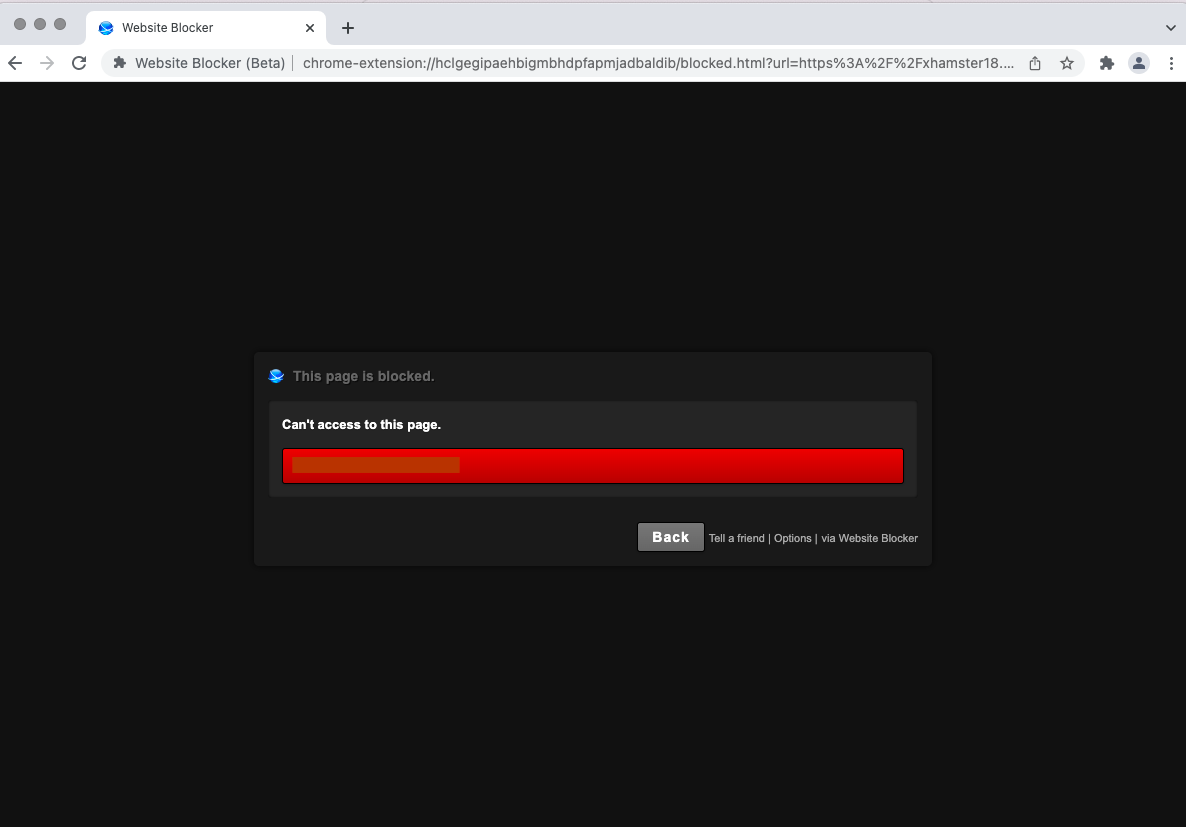
Other extensions you can use on Chrome to block a website are Limit, Pause, LeechBlock, StayFocused, Freedom (for Mac and Windows PC), and so on.
Epilogue
We hope that all your worries are gone! Now, kids in your house can no longer fall victim to cyber fraud, bullying, illegal content, etc.
Please turn on the Windows Defender Firewall program on your PC as it helps to protect against data breaches from external devices like flash drives or CDs.
To know more on the subject of cybernetic websites and crimes online, keep us in your favorites. Thank you for learning with us.
